How to Build a Dual-Monitor Gaming Desk Setup with a Standing Desk
A modern gaming desk often has to do much more than hold a monitor and keyboard.
For many gamers, the same workstation may include two monitors, a desktop PC, speakers, a microphone, webcam, headset, controller, charging dock and work equipment.
That creates a practical challenge:
How do you fit everything onto one gaming desk without making the setup feel crowded?
A standing desk can work particularly well for a multi-purpose gaming setup because the entire workstation can move together between seated and standing positions.
But simply placing gaming equipment on an adjustable desk is not enough.
Monitor position, desktop size, PC placement, cable length, load capacity and accessory layout all matter.
This guide explains how to build a clean and practical dual-monitor gaming desk setup with a standing desk, whether you use the desk only for gaming or combine gaming with work, study or content creation.
You can also browse the current JoyDesk height-adjustable standing desk range when planning your setup.
Why Use a Standing Desk for a Gaming Setup?
A traditional gaming desk normally has one fixed height.
That may work perfectly well if the desk is used in one position by one person.
A height-adjustable standing desk provides more flexibility.
Instead of designing your entire gaming setup around one fixed desktop height, you can adjust the desk to suit different activities.
For example, you may prefer to:
-
Sit during competitive gaming
-
Raise the desk while watching videos
-
Stand during casual browsing
-
Change position during long work sessions
-
Use different height presets for different users
The advantage is not that standing is automatically better than sitting.
The practical benefit is that the workstation can change with you.
That is particularly useful when one desk is used for gaming, working from home and studying.
Is a Standing Desk Good for Dual-Monitor Gaming?
Yes, provided the desk has enough desktop space and appropriate load capacity for the equipment.
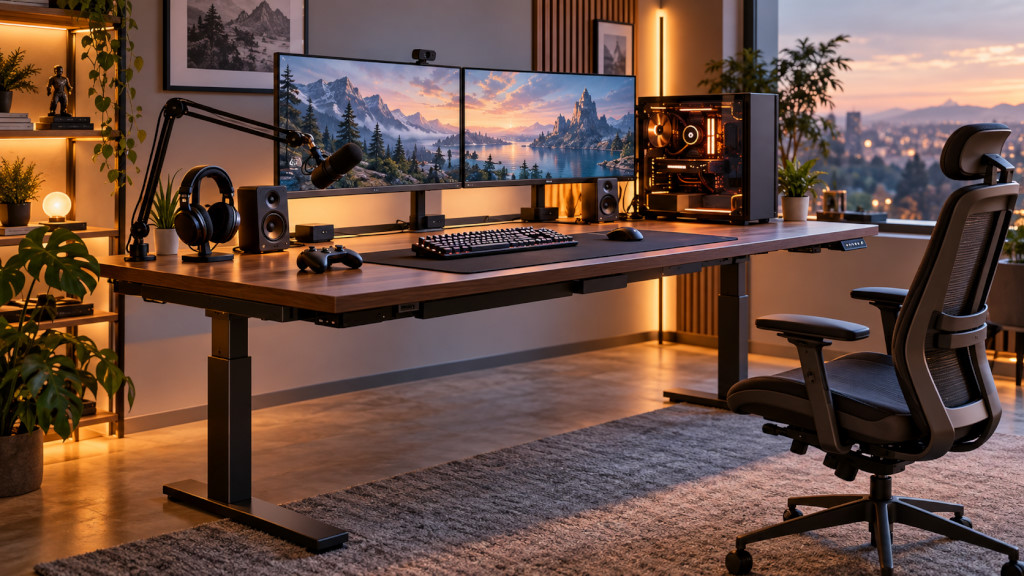
A dual-monitor gaming setup commonly includes:
-
Two monitors
-
One or two monitor arms
-
Desktop PC
-
Keyboard
-
Mouse
-
Large desk mat
-
Speakers
-
Headset
-
Microphone
-
Controller
-
Webcam
-
Charging accessories
Individually, these items may not take much space.
Together, however, they can create a surprisingly heavy and crowded workstation.
This is why a standing desk for gaming should be chosen around the entire setup rather than around only the keyboard and monitor.
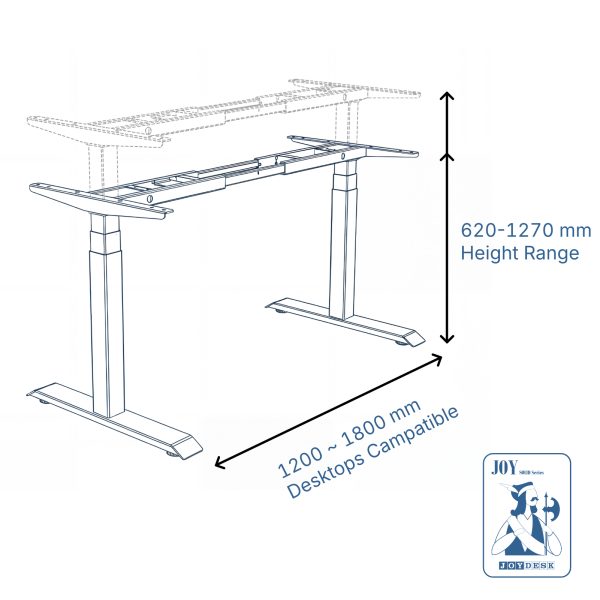
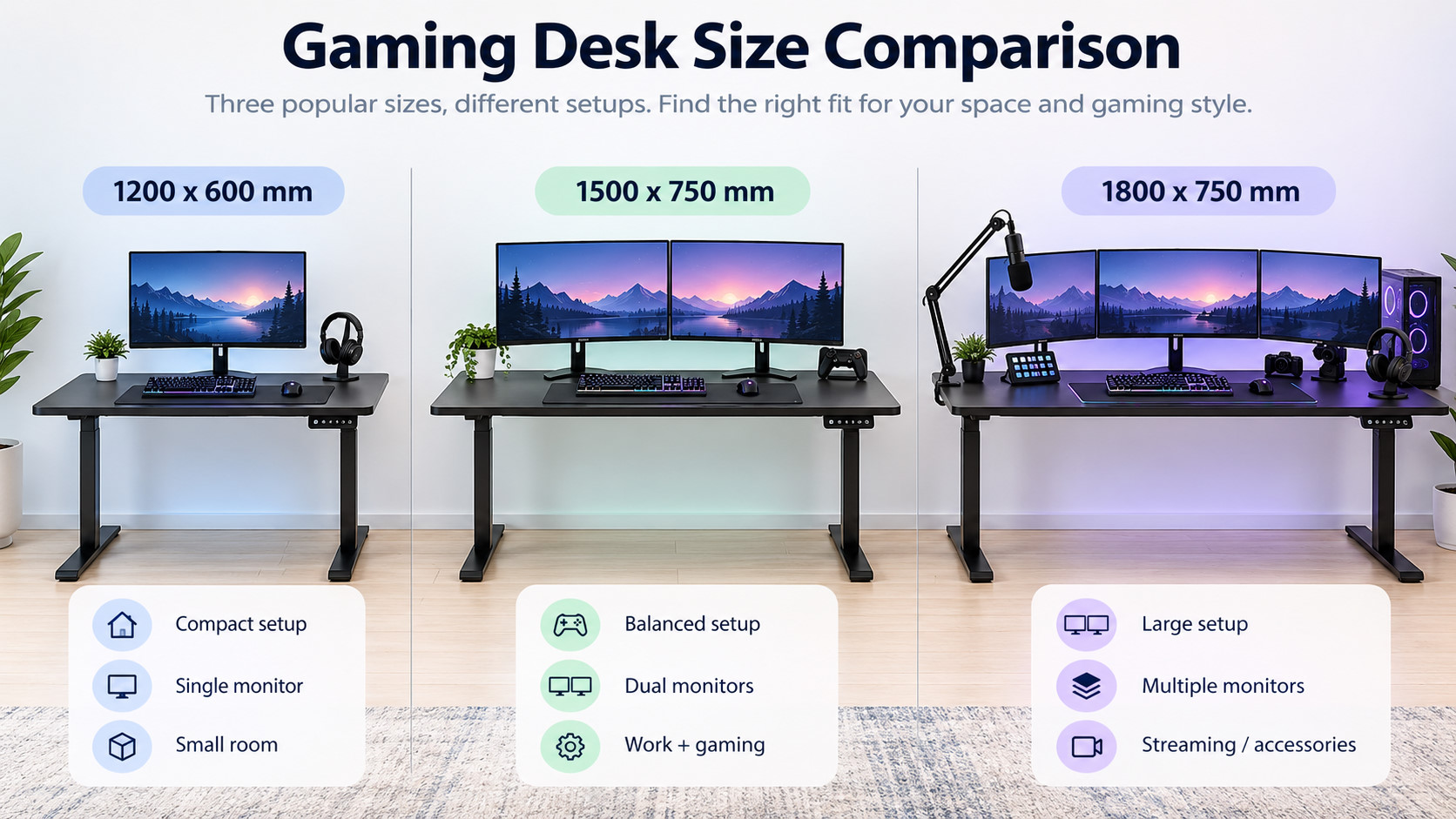
JoyDesk's height-adjustable standing desk collection includes desktop sizes from compact 1200mm options through to larger 1500mm and 1800mm configurations.
What Size Gaming Desk Works Best for Dual Monitors?
For many dual-monitor gaming setups, 1500mm wide is a practical starting point.
A 1500 × 750mm desktop can provide enough room for:
-
Two monitors
-
Full-size keyboard
-
Mouse
-
Desk mat
-
Speakers
-
Headset
-
Small accessories
If the gaming PC will also sit on the desktop, or if you use particularly large monitors, an 1800mm gaming desk may be more comfortable.
A 1200mm desk can still work with two monitors, especially when monitor arms are used, but space becomes more limited.
The best choice depends on the actual dimensions of your equipment.
If you have not yet decided on desktop size, read our guide:
What Size Gaming Desk Do You Need? A Standing Desk Size Guide for Gamers
You can also compare current JoyDesk desktop options, including 1200 × 600mm, 1500 × 750mm and 1800 × 750mm sizes.
How Should You Position Two Monitors on a Gaming Desk?
Dual monitors can be positioned in several ways.
The most common is to place one monitor directly in front of you as the primary display and the second monitor slightly angled to one side.
This works well when one screen is mainly used for gaming and the second is used for:
-
Discord
-
Streaming controls
-
Browsing
-
Music
-
Monitoring software
-
Work applications
Another option is to position both monitors symmetrically.
This can work well when both displays are used equally.
The important point is to avoid placing your primary screen far to one side if you spend most of your time looking at it.
Your main monitor should normally be positioned so you can face it naturally without constantly rotating your neck.
Should You Use Monitor Arms on a Gaming Standing Desk?
Monitor arms can be particularly useful on a standing desk.
Standard monitor bases often consume a surprising amount of desktop space.
With two monitors, the combined stands can take up a large portion of the rear desktop area.
Monitor arms can free up that space.
They may also allow you to:
-
Adjust monitor height
-
Adjust viewing distance
-
Angle the second display
-
Create more room for speakers
-
Improve access to cables
-
Keep the gaming desk visually cleaner
For an adjustable desk, another advantage is that the monitors move with the desktop.
However, monitor arms also add weight and create leverage on the desktop.
Check both the desk's capacity and the monitor arm's specifications before installing heavy displays.
Where Should the Gaming PC Go on a Standing Desk?
There are three common choices.
PC on the Desktop
Placing the gaming PC directly on the desk has several advantages.
The PC moves together with the standing desk, reducing the change in distance between the computer and monitors.
This can simplify:
-
HDMI cables
-
DisplayPort cables
-
USB cables
-
Audio cables
It can also keep the computer away from dust near the floor.
The downside is space.
A large gaming case can easily take up 200–300mm or more of desktop width.
If you want your PC on the desk alongside dual monitors, an 1800mm standing desk can become much more attractive.
PC Under the Gaming Desk
Putting the computer underneath the desk frees up significant desktop space.
This can work particularly well with a 1500mm gaming desk.
The main consideration is cable movement.
When the desk rises, the distance between the desktop and PC changes.
Before using the standing function regularly, test the desk at its maximum height.
Check that no cable becomes tight.
Pay particular attention to:
-
DisplayPort
-
HDMI
-
USB
-
Ethernet
-
Power
-
Headphone cables
-
Speaker cables
A cable that looks loose while seated may become surprisingly tight once the desk rises.
PC Mounted Under the Standing Desk
Another option is an under-desk PC mount.
This allows the computer to move together with the standing desk while keeping the desktop clear.
This can create a very clean gaming setup.
However, any mounting system needs to be suitable for the computer's size and weight and must not block important airflow.
Check compatibility carefully before mounting a heavy gaming PC underneath an adjustable desk.
Cable Management Is Essential on a Standing Gaming Desk
Good cable management matters on any desk.
On a standing desk, it matters even more.
Every time the desk moves upward or downward, cables need to move safely with it.
A poorly routed cable can:
-
Become stretched
-
Pull on a monitor
-
Disconnect from the PC
-
Catch on furniture
-
Pull a power board from the floor
A practical approach is to keep as much cabling as possible attached to the underside of the desktop.
A cable basket can hold:
-
Power boards
-
Power adapters
-
Excess cable
-
Chargers
-
USB hubs
JoyDesk offers a Cable Basket designed to help organise cables underneath the workspace.
You can also browse JoyDesk desk accessories when planning your gaming desk cable management.
How Much Weight Does a Gaming Standing Desk Need to Support?
Do not calculate desk load based only on your monitors.
Consider everything that moves with the desk.
A typical gaming setup may include:
-
Desktop itself
-
Two monitors
-
Monitor arms
-
Desktop PC
-
Speakers
-
Keyboard and mouse
-
Microphone arm
-
Webcam
-
Controllers
-
Audio interface
-
Lighting
-
Chargers
-
Other accessories
Large gaming setups can become surprisingly heavy.
For example, JoyDesk's JOY Solid standing desk uses dual motors and 3-stage columns and is specified to support multiple monitors, monitor arms and other workstation equipment, with a listed load capacity of up to 125kg.
You can compare current configurations in the JoyDesk standing desk range.
Always check the specifications of the exact model you are considering rather than assuming every standing desk has the same capacity.
How to Arrange Accessories Without Crowding the Gaming Desk
A large desktop can still feel crowded if everything is placed randomly.
A useful approach is to divide the desk into zones.
Centre Zone
Keep the primary gaming controls here:
-
Keyboard
-
Mouse
-
Desk mat
-
Main monitor
This should be the least cluttered area.
Secondary Monitor Zone
The second monitor can sit slightly to the side.
Nearby accessories might include:
-
Stream deck
-
Controller
-
Audio interface
-
Phone dock
Audio Zone
Speakers should ideally be placed with enough separation rather than being squeezed directly behind the monitors.
Headphones can be stored using:
-
Headphone stand
-
Under-desk hook
-
Side-mounted holder
Streaming Zone
If you use a microphone, a boom arm can save more desktop space than a large microphone stand.
The same principle applies to webcams and lighting.
Mounting accessories can free up usable desk surface.
What About Triple-Monitor Gaming Setups?
A triple-monitor setup places much greater demands on the gaming desk.
Three displays require:
-
More width
-
More monitor support
-
Greater load capacity
-
More cable management
For this kind of setup, an 1800mm standing desk is generally much more practical than a compact desk.
Monitor arms can help, but you should check the combined weight of all three displays and the arm system.
Triple monitors can also create a lot of cabling.
Planning the cable routes before mounting the screens is much easier than trying to reorganise everything afterward.
How to Set Up a Standing Desk for Gaming and Work
One of the strongest reasons to use a standing desk as a gaming desk is versatility.
A modern home workstation may serve multiple roles.
During the day:
-
Laptop
-
Video meetings
-
Office applications
-
Email
-
Documents
In the evening:
-
Gaming PC
-
Discord
-
Streaming
-
Controllers
-
Headset
Rather than creating two separate desks, one larger height-adjustable desk can serve both purposes.
For a shared gaming-and-work setup, consider using:
-
Dual monitors
-
USB switch or docking station
-
Monitor arms
-
Cable tray
-
Charging dock
-
Memory height presets
The aim is to make switching between work and gaming simple.
Standing Desk Height for Gaming
There is no single correct height for every person.
Your body dimensions, chair height, keyboard position and monitor setup all influence the ideal desk height.
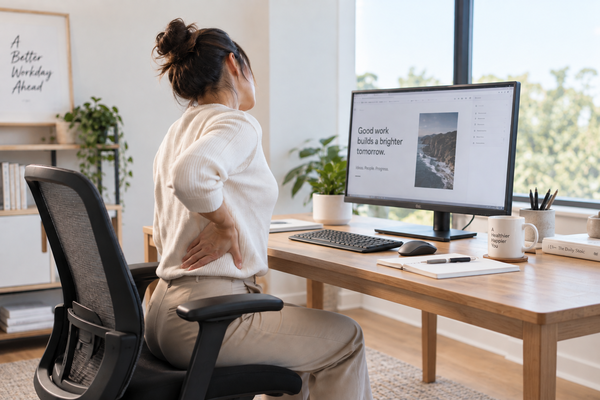
When seated, adjust the desk and chair together rather than treating them as separate pieces of furniture.
Your keyboard and mouse should be positioned so you do not need to reach upward or forward excessively.
When standing, raise the desk until you can use the keyboard and mouse comfortably without lifting your shoulders.
You may need to fine-tune the position over several sessions.
This is where electric height adjustment and memory presets can be useful.
JoyDesk's standing desk range includes models with adjustable-height frames and memory-control options across the range.
Pair the Gaming Desk With an Ergonomic Chair
Even if you use a standing desk, you will probably spend a significant amount of your gaming time sitting.
That makes the chair just as important as the desk.
Look for features such as:
-
Seat-height adjustment
-
Back support
-
Adjustable armrests
-
Appropriate seat depth
-
Stable base
-
Comfortable materials
JoyDesk offers a range of ergonomic chairs, including ergonomic mesh options and the Exon GAMING Leather Gaming Chair.
The right choice depends on your body, gaming style and how long you normally use the workstation.
Gaming Desk vs Standing Desk: Do You Need to Choose?
Not necessarily.
A standing desk can simply become your gaming desk.
The important question is whether the desk supports the way you actually use your computer.
A good gaming workstation needs:
-
Enough desktop space
-
Appropriate load capacity
-
Stable monitor support
-
Good cable management
-
Comfortable keyboard and mouse positioning
-
Room for future equipment
Height adjustment adds another layer of flexibility.
If you are still deciding between a traditional gaming desk and an adjustable workstation, read:
Gaming Desk vs Standing Desk: Best Setup for Gaming in 2026
A Practical Dual-Monitor Gaming Desk Checklist
Before buying or setting up your desk, check the following:
Monitor setup
Measure the width and weight of both monitors.
Decide whether you will use their original stands or monitor arms.
Desktop
Measure the available room.
Choose enough width and depth for your equipment.
Gaming PC
Decide whether it will sit on the desk, underneath it or in an under-desk mount.
Cables
Test the cable length at both minimum and maximum desk height.
Accessories
Plan locations for speakers, microphone, headset, controller and chargers.
Chair
Make sure the chair can be adjusted appropriately relative to the desk.
Power
Think about where the power board will sit and how its cable will reach the wall outlet.
Planning these details before installing the equipment can save a lot of rearranging later.
Common Gaming Standing Desk Setup Mistakes
A few mistakes appear frequently in multi-monitor setups.
Buying the Desk Before Measuring the Monitors
Monitor dimensions can vary considerably.
Two large gaming displays may require far more width than expected.
Forgetting About PC Width
A desktop PC can consume a substantial portion of a gaming desk.
Include it in your measurements before choosing between 1500mm and 1800mm.
Ignoring Cable Length
This is particularly important for standing desks.
Test all cables through the desk's full movement range.
Choosing Based Only on Appearance
A gaming desk should first support the equipment safely and comfortably.
Aesthetic elements can be added afterward.
Filling Every Centimetre of the Desktop
Leave some free space.
A gaming setup is easier to use when there is room to move the keyboard, controller, notebook or other equipment.
Final Thoughts: Build the Gaming Desk Around Your Equipment
A successful gaming setup starts with the equipment you actually use.
For a dual-monitor configuration, a standing desk can provide an excellent foundation because it combines desktop space with adjustable height.
Start by measuring your monitors.
Then decide where the gaming PC will sit.
Choose the desktop size based on the entire setup rather than just the screens.
Plan your cable routing before turning everything on.
Finally, position the chair, keyboard, mouse and monitors so the workstation feels comfortable for both gaming and everyday use.
For many gamers, a 1500mm standing desk provides a good balance between desktop space and room size.
For larger multi-monitor setups, streaming equipment or a PC positioned on the desktop, an 1800mm gaming desk may provide the extra space you need.
You can explore the JoyDesk height-adjustable standing desk collection, compare desktop sizes and materials, browse ergonomic chairs and add desk accessories to build a gaming setup around the way you actually use your workstation.